How Browser Calling Works: WebRTC Explained for Teams
How a browser makes phone calls with WebRTC: permissions, signalling, firewalls, gateways to the phone network, quality factors and a troubleshooting checklist.
Making a phone call from a web page used to need a plug-in or an installed program. Today a browser can do it alone. The technology that makes this possible is WebRTC, short for Web Real-Time Communication. It underlies video meetings, browser softphones and many voice agents.
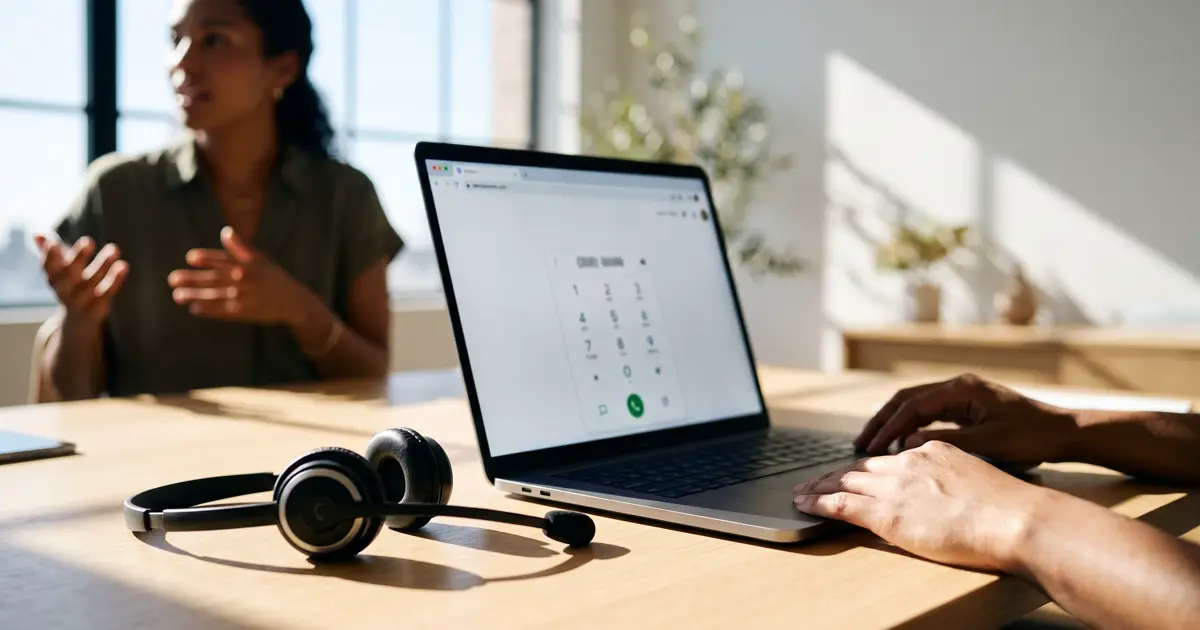
This guide explains how browser calling works in plain terms, what can go wrong and how to troubleshoot it. If you want the people-and-process view of softphones, read Using the Softphone in Call.
What WebRTC is
WebRTC is a collection of standards built into modern browsers. It gives web pages three abilities: access to the microphone (and camera, if wanted), a way to encode and send audio in real time, and a way to connect directly to another device or to a server. Because the browser does the heavy work, a web application can offer calling without installing anything.
What the browser handles for you
- CaptureAsks permission for the microphone and reads the sound.
- EncodingCompresses the audio so that it fits the network.
- Echo and noise handlingReduces echo and some background noise.
- Network adaptationAdjusts to changing conditions, such as a weak connection.
- Encryption of mediaAudio is encrypted in transit as part of the standard.
How a call is set up
Before audio flows, the two sides must agree how to talk. That agreement is signalling. WebRTC does not define the signalling channel itself, so each application uses its own, typically over a secure web connection to a server.
The steps of a browser call
- PermissionThe browser asks the user to allow microphone access.
- SignallingThe application and the other side exchange details such as audio formats and network addresses.
- Finding a pathBoth sides test routes to reach each other, including through firewalls.
- Media startsEncrypted audio flows both ways.
- Call endsEither side hangs up and the connection closes.
Finding a route through firewalls and routers
Most devices sit behind a router that hides their real address. To connect, WebRTC uses a process of collecting candidate routes and testing them. Helper servers assist: one kind tells a device what its public address looks like, and another relays the audio when a direct route is impossible. A relay adds a little delay but gets the call through restrictive networks.
Codecs
A codec is the method of compressing audio. Browsers support common voice codecs, and the two sides pick one both understand. Different codecs trade quality, bandwidth and robustness to loss.
Connecting a browser to the phone network
A browser can talk directly to another browser, but most business calls involve ordinary phones. For that, a gateway sits between the web world and the telephone network. On one side it speaks WebRTC; on the other it speaks the signalling and audio formats used by carriers. SIP Trunking Basics explains the carrier side.
Browser calling versus a desk phone
| Browser (WebRTC) | Desk phone | |
|---|---|---|
| Install | None; open a web page | Hardware to set up |
| Location | Anywhere with internet | Tied to a desk or network |
| Audio quality | Depends on the headset and connection | Depends on the handset and network |
| Management | Updated with the web application | Firmware and provisioning |
| Failure points | Browser permissions, device choice, Wi-Fi | Cables, power, phone settings |
What affects call quality
- The microphone and headset. A good headset helps more than any software setting.
- The network. Wi-Fi congestion, a weak signal or a busy shared connection cause drop-outs and delay.
- The device. An old or overloaded computer can struggle to encode audio.
- Other tabs and apps. Heavy use of the processor or network by other programs can degrade a call.
- The route. A relay through a distant server adds delay.
Choppy or robotic audio usually points to the network. Silence from one side points to permissions or the wrong device. Echo points to speakers feeding into the microphone, so use a headset where you can. Related audio topics are in Why Phone Audio Is Hard for Speech Recognition.
Troubleshooting checklist
When browser calling does not work
- The browser has permission to use the microphone for this site
- The correct microphone and speaker are selected in the browser and the system
- Another application is not holding the microphone
- The browser is up to date
- The connection is stable; try a wired connection or move nearer the router
- A VPN or strict firewall is not blocking real-time traffic
- The page is reloaded after changing permissions
- A test call to a colleague has audio in both directions
Choosing equipment for browser calls
Because the browser does the work, the equipment you choose has a large effect. A headset with a boom microphone placed close to the mouth picks up the voice and little else, which helps the person on the other end and any transcription of the call. Wired or dedicated wireless headsets tend to be steadier than Bluetooth earbuds that share a busy radio band, although many Bluetooth devices work well.
Check how the headset appears to the browser. Some devices offer two modes, one for music and one for calls, and the call mode may reduce the audio quality. If you share a computer, make sure each person selects their own device. For teams, a short setup guide with a test call script saves time: open the page, allow the microphone, choose the headset, call a colleague, speak and listen in both directions.
Finally, think about the room. Hard walls cause echo, open offices add chatter, and a noisy fan is picked up by many microphones. Small changes, such as moving a desk away from a window or adding soft furnishings, can improve calls more than any setting.
Take a few minutes to try the setup at the time of day when the office is busiest. A connection that works at eight in the morning may struggle at eleven when everyone is on video meetings.
Privacy and security basics
The standard encrypts audio between the browser and the next point on its path, but the whole call is only as private as every step beyond it. Recording, transcripts and storage are separate decisions with their own rules. Ask where the audio goes after the gateway, what is recorded and for how long. Rules on recording consent vary by country and change over time; this is general information, not legal advice, so check official guidance. See Call Recording Consent and Privacy by Design for Voice AI.
Browser calling in Call
In Call, staff take calls in the browser. Press Go on the phone in the phone bar and allow the microphone if the browser asks. When a call comes in, press Answer or Decline; if a second call arrives, Hold and take it holds the first. During a call you can Mute, open the Keypad and Hang up, and you press Go off the phone when you stop taking calls. With no devices added, calls ring in this browser only. Calls placed or answered in the browser can have a live transcript, with both sides labelled, saved with the call; it needs the carrier connection and a public address, and the panel explains if something is missing. Test the set-up with a colleague before relying on it, using the checklist above.
Frequently asked questions
What does WebRTC stand for?
Web Real-Time Communication. It is a set of standards that let browsers send and receive audio and video in real time without plug-ins.
Do I need to install anything to call from a browser?
Usually not. A modern browser has what is needed; you must allow microphone access for the site.
Is browser calling encrypted?
WebRTC encrypts media between the browser and the next hop. What happens after that, such as recording and storage, depends on the service and your settings.
Why can I hear them but they cannot hear me?
The browser may be blocked from the microphone, or the wrong input device may be selected. Check site permissions and the audio settings.
Why is audio choppy?
Poor Wi-Fi, a congested connection or an overloaded device are the usual causes. Try a wired connection or close other programs.
Can a browser call ordinary phones?
Yes, through a gateway that connects the web call to the phone network. The service you use provides that link.